
A good trackball can reduce desk movement while giving you precise pointer control, making it a practical alternative to a conventional mouse for Windows users.
We compared 10 models across comfort, connection options, tracking controls, button layouts, and desk-friendly design to help you find the right fit for work, creative tasks, and everyday use.
Best 10 Trackballs for Windows Picks for 2026
Best Premium Ergonomic Pick

- 20-degree tilt with ergonomic sculpted design
- Bluetooth and Logi Bolt wireless connectivity
- Rechargeable battery with up to 120 days of use
Best For: Premium Windows productivity setups and long work sessions
Best Wired Precision Pick
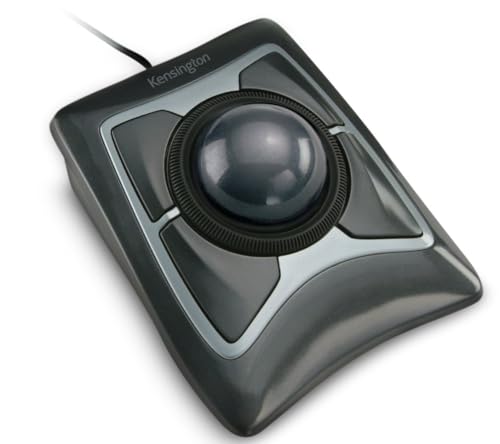
- Large 55mm ball with optical tracking
- Ambidextrous design and detachable wrist rest
- Wired USB-A connection with scroll ring
Best For: Shared desks and precise, stationary Windows work
Best Long-Battery Pick
Logitech Ergo M575 for Business

- Up to 18 months from one AA battery
- Wireless Bluetooth and RF connectivity
- Ergonomic thumb control for tight workspaces
Best For: Office users and business deployments needing low-maintenance wireless control
Best Budget Wired Pick
PORLEI Ergonomic RGB Trackball

- Five adjustable DPI levels from 100 to 1200
- Wired USB connection with no drivers required
- RGB lighting and 34mm thumb-controlled ball
Best For: Budget-conscious Windows users with compact workspaces
Best Adjustable-Angle Pick
Ergonomic Wireless Trackball Mouse

- Adjustable 0°/18° ergonomic tilt
- Bluetooth and 2.4GHz for up to three devices
- Rechargeable USB-C battery with five DPI levels
Best For: Windows users seeking adjustable comfort and wireless flexibility
Best Wired Large-Hand Option

- Large 44mm index-finger trackball
- Four DPI levels from 600 to 1600
- Quiet buttons and direct USB connection
Best For: Windows users with larger hands who prefer wired operation
Best Compact Wireless Value

- Thumb control for limited workspaces
- Bluetooth or USB wireless connection for up to three devices
- Rechargeable battery and six-button layout
Best For: Windows users needing flexible wireless control in compact spaces
Best Overall
ELECOM HUGE Plus Wireless Trackball

- Large 52mm ball for precise control
- Tri-mode, three-device connectivity
- 10 programmable buttons and long battery life
Best For: Windows users seeking maximum customization and ergonomic control
Best Silent Option
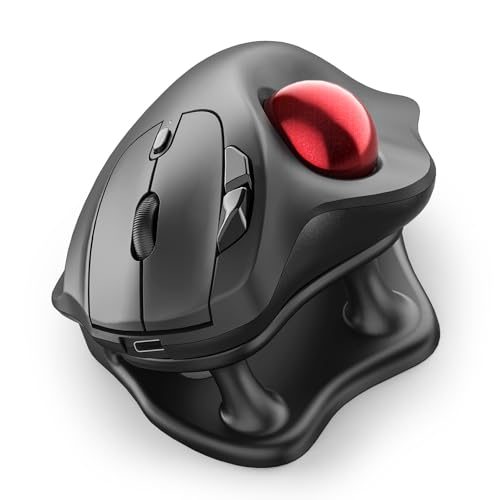
- Completely silent trackball and buttons
- 21.7-degree ergonomic tilt stand
- Wireless connection for up to three devices
Best For: Quiet offices, shared spaces, and late-night work
Best Wired Value

- Plug-and-play wired USB connection
- Type-A and Type-C interface options
- No batteries or charging required
Best For: Stationary Windows desks that favor simple, dependable connectivity
Best Premium Ergonomic Pick – Logitech MX Ergo S
The Logitech MX Ergo S is a strong choice among trackballs for Windows users who want wireless convenience, thumb control, and a more adjustable ergonomic design. Its 20-degree tilt, quiet clicks, customizable controls, and rechargeable battery make it well suited to long work sessions.
Best For: Windows users seeking a premium ergonomic trackball for productivity and everyday office work.
Pros:
- 20-degree tilt and sculpted shape support a more comfortable forearm position.
- Switchable speed and precision tracking, plus six customizable buttons through Logi Options+.
- Bluetooth and included Logi Bolt receiver provide flexible wireless connectivity.
- USB-C charging offers up to 120 days of use on a full charge.
Cons:
- Designed for right-handed users and medium- to large-sized hands.
- Charging cable is not included.
- Its advanced features may be more than casual users need.
The MX Ergo S is the most feature-rich option here for users prioritizing comfort and customization. It is especially appealing if you want a wireless trackball that can move between Windows computers and tablets without moving the mouse itself.
Best Wired Precision Pick – Kensington Expert Trackball
Kensington Expert Trackball Mouse (K64325), Black Silver, 5"W x 5-3/4"D x 2-1/2"H
Check Price On AmazonThe Kensington Expert Trackball is a practical wired option for trackballs for Windows, combining a large 55mm ball with optical tracking and a dedicated scroll ring. Its ambidextrous design and detachable wrist rest make it suitable for shared workstations and users who prefer a stable USB connection.
Best For: Desk-based Windows users who want precise wired control and an ambidextrous layout.
Pros:
- Large 55mm ball is designed for precise cursor control.
- Patented scroll ring makes moving through long pages convenient.
- Ambidextrous design works for either hand.
- Detachable wrist rest adds support during extended use.
Cons:
- Requires a wired USB-A connection.
- KensingtonKonnect customization does not support Windows ARM-based computers.
- ChromeOS users receive basic HID functions but cannot customize the device through KensingtonKonnect.
This model favors dependable desk use over portability. The large ball, scroll ring, and five-year warranty make it a sensible choice for users who do not need wireless operation or a compact design.
Best Long-Battery Pick – Logitech Ergo M575 for Business
The Logitech Ergo M575 for Business is a straightforward wireless choice among trackballs for Windows. Its sculpted right-handed shape, smooth thumb control, tight-space usability, and 18-month AA battery life make it a convenient fit for office desks and business deployments.
Best For: Windows office users who want a comfortable wireless trackball with minimal battery maintenance.
Pros:
- Ergonomic shape is designed to reduce hand and arm movement during work.
- Bluetooth and radio-frequency wireless connectivity support flexible setups.
- Up to 18 months of use from one AA battery.
- Works well in tight spaces because the mouse stays stationary.
Cons:
- Right-handed design is not suited to left-handed users.
- Uses a replaceable AA battery rather than a rechargeable battery.
- Business-focused management features may be unnecessary for home users.
The M575 is a balanced option for everyday Windows productivity. It lacks the MX Ergo S’s tilt and rechargeable design, but its lower-maintenance battery and compact stationary footprint are compelling for busy office environments.
Best Budget Wired Pick – PORLEI Ergonomic RGB Trackball
The PORLEI ergonomic trackball is a colorful wired alternative for shoppers comparing trackballs for Windows on a tighter budget. It uses a 34mm thumb-controlled ball, five adjustable DPI levels, USB-A connectivity, and RGB lighting, while its stationary design works well in cramped spaces.
Best For: Windows users who want an affordable wired trackball with adjustable sensitivity and RGB lighting.
Pros:
- Five DPI settings range from 100 to 1200 for different tracking preferences.
- 34mm thumb-controlled ball works on desks and other surfaces.
- USB connection requires no driver download and supports Windows and macOS.
- Back/Forward buttons, scroll wheel, and removable ball support everyday use and cleaning.
Cons:
- Wired 1.8-meter cable limits placement flexibility.
- Buttons are non-programmable.
- Back/Forward buttons are not compatible with macOS, though this does not affect Windows use.
This PORLEI model offers useful basic controls without wireless pairing or software setup. It is a good fit for a secondary workstation, compact desk, or anyone who values DPI adjustment and lighting more than advanced customization.
Best Adjustable-Angle Pick – Ergonomic Wireless Trackball Mouse
For shoppers comparing trackballs for windows, the SABLUTE MAM1 Pro stands out for its adjustable 0° or 18° tilt, wireless versatility, and rechargeable design. Its thumb-operated ball keeps cursor control localized, which can be useful at a crowded desk or during long computer sessions.
Best For: Windows users who want an adjustable ergonomic angle and multi-device wireless connectivity.
Pros:
- Adjustable 0°/18° angle supports different wrist positions.
- Connects with up to three devices through Bluetooth and 2.4GHz wireless.
- Rechargeable USB-C battery, quiet clicks, and five DPI settings from 800 to 4800.
- Backlight can be switched on or off, and the receiver stores in the base.
Cons:
- Right-hand orientation may not suit left-handed users.
- Included customization driver is not compatible with Mac OS.
- New trackball users may need one to two weeks to adapt.
This is a feature-rich option for Windows setups that value posture flexibility and device switching. Choose it if the adjustable angle and rechargeable wireless design matter more than a simple plug-and-play wired connection.
Best Wired Large-Hand Option – SANWA Index Finger Trackball
Among trackballs for windows, the wired SANWA GMATB137 is designed for users who prefer a substantial fit and a direct USB connection. Its 44mm ball, index-finger control, and broad surface compatibility make it practical for desks, sofas, laps, and other places where a conventional mouse is awkward.
Best For: Windows users with larger hands who prefer a wired trackball with a large ball and quiet buttons.
Pros:
- Large 44mm trackball supports cursor control without moving the mouse.
- Ergonomic finger rests are designed for a natural wrist and arm position.
- Four DPI settings range from 600 to 1600 for adjustable cursor control.
- Quiet left- and right-click buttons suit libraries, meetings, and other quiet spaces.
Cons:
- USB wired design does not provide wireless freedom.
- Right-hand orientation may limit suitability for left-handed users.
- Button customization software does not work with Mac OS or Chrome OS.
The SANWA is a focused choice for Windows users who want a large, stable pointing device without batteries or wireless pairing. Its lower maximum DPI and wired connection are trade-offs for its quiet operation and large-hand-oriented design.
Best Compact Wireless Value – Nulea M501 Trackball Mouse
The Nulea M501 is a practical contender among trackballs for windows, combining thumb control with wireless connectivity and a rechargeable battery. Because the ball moves the cursor while the mouse stays in place, it can work well on narrow desks, couches, beds, or other limited surfaces.
Best For: Windows users who want a rechargeable wireless trackball for compact or flexible workspaces.
Pros:
- Thumb-operated trackball reduces the need to move the wrist and arm.
- Connects to up to three devices through Bluetooth or a USB dongle.
- Rechargeable battery eliminates the need for replaceable cells.
- Six buttons include forward and back controls for convenient navigation.
Cons:
- Buttons are not programmable.
- Right-hand orientation may not work for left-handed users.
- Manufacturer advises using the included cable or a 5V charger rather than a fast charger.
The M501 makes sense for Windows users who prioritize wireless convenience and portability over extensive button customization. Its multi-device switching and stationary operation are especially useful when desk space is limited.
Best Overall – ELECOM HUGE Plus Wireless Trackball
For shoppers comparing trackballs for windows, the ELECOM HUGE Plus stands out for its large 52mm ball, flexible connectivity, and extensive customization. It supports Bluetooth, 2.4GHz wireless, and wired USB-C connections, making it suitable for multi-device setups.
Best For: Windows users who want a highly customizable, rechargeable trackball for long work sessions.
Pros:
- Large 52mm ball is designed for precise, fluid control.
- Connects to up to three devices through Bluetooth, 2.4GHz wireless, or USB-C.
- Offers 10 programmable buttons and quiet clicks.
- Rechargeable battery provides up to five months of use per charge.
Cons:
- Right-hand design may not suit left-handed users.
- Its 291 g weight and large 7.2-by-4.5-inch footprint may feel substantial.
- Advanced features may be more than casual users need.
The HUGE Plus is the most feature-rich option here, especially for productivity-focused Windows setups. Its large body and broad customization make it a strong choice when comfort and control matter more than portability.
Best Silent Option – Nulea M511 Wireless Trackball
The Nulea M511 is a practical pick among trackballs for windows when quiet operation and wrist comfort are priorities. Its 21.7-degree tilt stand, thumb-controlled ball, and wireless multi-device support are suited to extended desk work.
Best For: Office workers and shared-space users who want silent, wireless trackball control.
Pros:
- Silent operation includes the trackball, buttons, and scroll wheel.
- 21.7-degree tilt stand promotes a more natural wrist position.
- Bluetooth and USB receiver support up to three devices.
- Four DPI settings range from 400 to 1600 for adjustable responsiveness.
Cons:
- Buttons are not programmable.
- Right-hand design limits orientation flexibility.
- Compatibility details list Windows 11 and macOS 14 Sonoma as the minimum operating-system versions.
The M511 focuses on quiet, comfortable everyday use rather than extensive customization. Its adjustable DPI and multi-device switching add useful flexibility, while the six-button layout keeps operation straightforward.
Best Wired Value – Nulea M509 Wired Trackball
For a straightforward Windows setup, the Nulea M509 offers plug-and-play wired control without batteries or wireless pairing. Its thumb-operated trackball, adjustable DPI, and dual Type-A/Type-C interface make it a practical choice for desks with limited space.
Best For: Windows users who prefer reliable wired connectivity and simple setup.
Pros:
- Plug-and-play operation requires no drivers.
- Includes a 5.9-foot cable with Type-A and Type-C connectivity.
- Thumb control reduces wrist and arm movement.
- Six-button layout includes back and forward buttons.
Cons:
- Wired design does not provide wireless freedom.
- Buttons are not programmable.
- Right-hand design may not work for left-handed users.
The M509 is the simplest option in this roundup and avoids charging, pairing, and battery concerns. Choose it if your Windows workstation stays in one place and dependable wired operation is more important than portability.
How We Picked the Best Trackballs for Windows
We focused on the features that matter most in daily Windows use: comfortable hand positioning, reliable tracking, useful sensitivity controls, connection stability, and compatibility with common desktop setups. The selection includes thumb-operated models for a familiar transition from a standard mouse, as well as finger-operated trackballs that can suit larger hands or users who prefer more direct ball control.
We also considered whether each model is wired, wireless, rechargeable, or compatible with multiple connection types. Programmable buttons, scroll-wheel placement, adjustable angles, and included software can make a meaningful difference for productivity, particularly when switching between applications or repetitive workflows.
Quick Comparison
| Type | Best For | Connection Considerations |
|---|---|---|
| Thumb-operated | Users transitioning from a conventional mouse | Typically wireless or wired USB |
| Finger-operated | Large hands, precision, and reduced thumb use | Often wired, wireless, or multi-connection |
| Adjustable-angle | Users seeking a more neutral wrist position | Check charging and receiver requirements |
| Programmable-button models | Productivity, editing, and custom shortcuts | Software support may vary by Windows version |
Key Buying Factors for Trackballs for Windows
Control Style and Ball Size
Thumb-ball designs feel closest to ordinary mice, while larger finger-operated balls can offer more leverage and fine control. Choose based on which fingers you naturally prefer to move and whether your hand fits the body comfortably.
Ergonomics and Hand Fit
Look for a shape that supports your palm without forcing your wrist sideways. Tilted or adjustable designs may help some users maintain a more neutral posture, but a larger housing is not automatically more comfortable. Check dimensions carefully if you have small or large hands.
Connectivity and Power
Wireless models keep the desk clear, but require batteries, charging, or a receiver. Bluetooth is useful for compatible laptops and tablets, while 2.4GHz receivers can offer simple plug-and-play performance. Wired models avoid charging and are often a strong choice for fixed workstations.
DPI, Buttons, and Software
Adjustable DPI helps you balance fast navigation with precise selection. Extra programmable buttons are valuable for shortcuts, but confirm that configuration software supports your Windows setup and that the button arrangement is comfortable to reach.
Who Should Buy Which Trackballs for Windows?
- Choose a thumb-operated wireless model if you want an easy transition from a standard mouse and a less cluttered desk.
- Choose a finger-operated trackball if you prefer a larger ball, need precise cursor control, or want to reduce reliance on thumb movement.
- Choose an adjustable-angle design if wrist position is your main concern and you want to experiment with different hand orientations.
- Choose a wired model for a dependable desktop setup with no battery management.
- Choose a programmable multi-connection model if you regularly switch between Windows computers or rely on custom shortcuts.
Before buying, verify operating-system support, available USB ports, receiver storage, and the return policy. Trackballs can feel unfamiliar for several days, so comfort and correct hand fit matter more than a long feature list.