
The best ergonomic trackballs can reduce wrist movement while giving you precise cursor control for work, creative tasks, and everyday browsing. This roundup compares 10 models across thumb-control and finger-operated designs, wired and wireless connectivity, adjustable angles, and rechargeable power.
Use the buying guide below to narrow your choices by hand comfort, desk setup, control style, and budget before selecting the trackball that fits your routine.
Best 10 Ergonomic Trackballs Picks for 2026
Best Space-Saving Pick

- Thumb control needs little desk space
- Bluetooth and Logi Bolt wireless options
- Three customizable buttons with Smart Actions
Best For: Compact wireless workspaces and everyday office use
Best Wired Value

- Wired USB connection needs no charging
- Five programmable buttons and tilt scroll
- Optical thumb tracking for precise control
Best For: Right-handed desktop users who prefer wired reliability
Best Premium Wireless Pick

- 20-degree tilt and contoured grip
- USB-C charging with up to 120 days per charge
- Dual wireless connectivity and six customizable buttons
Best For: Advanced productivity setups and medium-to-large hands
Best Ambidextrous Desk Model
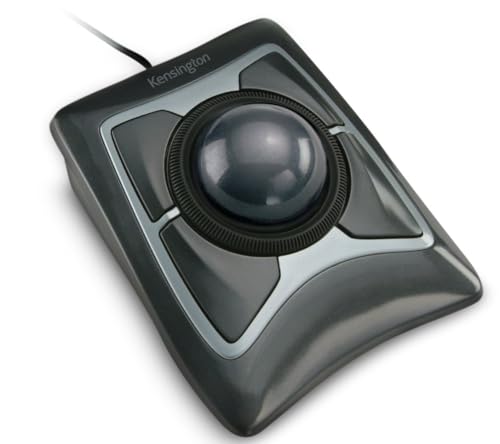
- Large 55mm ball with optical tracking
- Detachable wrist rest and ambidextrous layout
- Scroll ring with four customizable buttons
Best For: Desktop users wanting wrist support and large-ball control
Best Wireless Thumb-Control Pick

- Rechargeable wireless design with Bluetooth and USB connectivity
- Four DPI levels and smooth thumb-controlled tracking
- Right-handed six-button layout for compact workspaces
Best For: Right-handed users wanting a flexible wireless trackball for daily work
Best Adjustable-Angle Option

- Switches between flat 0° and tilted 15° positions
- Quiet clicks, five DPI settings, and multi-device wireless support
- USB-C rechargeable with up to 90 days of standby
Best For: Users seeking customizable tilt and quiet wireless operation
Best Wired Plug-and-Play Pick

- No-driver wired setup with a 5.9-foot cable
- Type-A and Type-C connections support varied devices
- Ergonomic thumb control with adjustable DPI
Best For: Users who prefer simple, battery-free wired connectivity
Best Adjustable Angle

- 0°/18° adjustable ergonomic tilt
- Three-device Bluetooth and 2.4GHz connectivity
- Rechargeable battery with five DPI levels
Best For: Right-handed users wanting flexible tilt and multi-device control
Best for Silent Workspaces
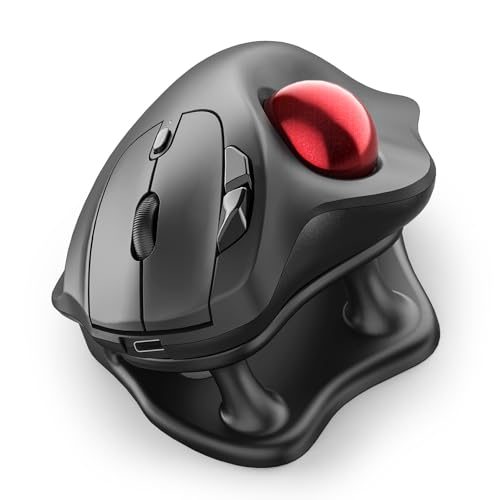
- 21.7° ergonomic tilt stand
- Silent trackball, buttons, and scroll wheel
- Three-device Bluetooth or USB connectivity
Best For: Quiet offices, shared spaces, and late-night work
Best Space-Saving Pick – Logitech ERGO M575S
Logitech Ergo M575S Wireless Ergonomic Trackball Mouse, Black/Blue (910-007026)
Check Price On AmazonThe Logitech ERGO M575S is a practical choice among ergonomic trackballs for compact desks and flexible everyday setups. Its thumb-controlled ball lets you move the cursor without shifting your hand, while wireless Bluetooth and Logi Bolt connectivity keep your workspace tidy.
Best For: Small workspaces, general office use, and users who want wireless convenience with minimal hand movement.
Pros:
- Thumb control works well on any surface and saves desk space.
- Bluetooth and included Logi Bolt receiver provide flexible wireless connectivity.
- Three customizable buttons support shortcuts and Smart Actions.
- Uses one included AA battery and supports hand positioning intended to improve posture.
Cons:
- Uses a replaceable AA battery rather than USB-C recharging.
- Its right-handed ergonomic shape may not suit every user or hand size.
The M575S keeps the essential advantages of ergonomic trackballs while staying relatively simple and space-conscious. It is a strong fit if wireless setup and compact operation matter more than extensive button customization.
Best Wired Value – ELECOM EX-G Trackball
The ELECOM EX-G is a wired option for shoppers comparing ergonomic trackballs without wanting to manage charging or batteries. Its thumb-operated ball, optical tracking, programmable buttons, and tilt scroll are suited to office work, creative software, browsing, and gaming.
Best For: Right-handed users who prefer a dependable USB connection and configurable controls.
Pros:
- USB power eliminates battery-life and charging concerns.
- Five programmable buttons can be tailored to different workflows.
- Optical tracking and thumb control support precise cursor movement with less wrist motion.
- Tilt scrolling adds another navigation option.
Cons:
- Wired operation limits cable-free flexibility.
- Listed compatibility is centered on Windows and macOS computers.
- The right-handed design may not suit left-handed users.
Choose the EX-G if consistent USB performance and customization are priorities. It offers a straightforward wired approach to ergonomic trackballs, though users seeking wireless mobility should consider another model.
Best Premium Wireless Pick – Logitech MX Ergo S
The Logitech MX Ergo S is a feature-rich choice among ergonomic trackballs, combining a 20-degree tilt with a sculpted grip for medium- to large-sized hands. It also adds adjustable tracking, quiet clicks, six customizable buttons, dual wireless connectivity, and USB-C fast charging.
Best For: Productivity-focused users with medium or large hands who want advanced wireless controls and rechargeable power.
Pros:
- 20-degree tilt is designed to support a more comfortable forearm posture.
- Switchable speed and high-precision tracking adapts to different tasks.
- Bluetooth and included Logi Bolt receiver support dual wireless connectivity.
- A one-minute USB-C charge can provide up to 24 hours of use, while a full charge is rated for up to 120 days.
Cons:
- USB-C charging cable is not included.
- The right-handed design and larger fit may not suit smaller hands or left-handed users.
- Most advanced customization requires the Logi Options+ app.
The MX Ergo S is the most advanced option in this group for users willing to pay for adjustability and rechargeable convenience. Its larger contoured design makes it especially compelling for long productivity sessions, provided it fits your hand.
Best Ambidextrous Desk Model – Kensington Expert Trackball
Kensington Expert Trackball Mouse (K64325), Black Silver, 5"W x 5-3/4"D x 2-1/2"H
Check Price On AmazonThe Kensington Expert Trackball takes a different approach to ergonomic trackballs with a large 55mm ball, a detachable wrist rest, and an ambidextrous layout. Its wired USB-A connection and scroll ring make it a practical desktop option for precise navigation through long documents and pages.
Best For: Ambidextrous desktop users who value a large ball, wrist support, and a dedicated scroll ring.
Pros:
- Large 55mm ball and Diamond Eye optical tracking provide precise cursor control.
- Detachable wrist rest supports the hand and wrist during extended use.
- Ambidextrous design accommodates left- and right-handed users.
- Scroll ring and customizable four-button layout aid navigation and shortcuts.
Cons:
- Wired USB-A connectivity is less flexible than wireless models.
- The large desktop footprint may not suit compact workspaces.
- KensingtonKonnect customization has stated limitations on ChromeOS and Windows ARM-based computers.
The Expert Trackball is a solid choice when a large control surface and wrist support matter more than portability. Its ambidextrous design broadens its appeal, while the wired connection keeps the setup simple and dependable.
Best Wireless Thumb-Control Pick – Nulea M501
The Nulea M501 is a practical choice among ergonomic trackballs for right-handed users who want wireless flexibility and thumb-controlled cursor movement. Its curved shape, natural palm angle, adjustable DPI, and rechargeable battery suit everyday work in compact or cluttered spaces.
Best For: Right-handed users seeking a rechargeable ergonomic trackball with Bluetooth and USB connectivity.
Pros:
- Thumb control reduces wrist and arm movement while maintaining a natural palm position.
- Connects with up to three devices through Bluetooth or the USB receiver.
- Four DPI levels support adjustable cursor responsiveness.
- Six-button layout includes convenient back and forward buttons.
Cons:
- Buttons are not programmable.
- Requires the included cable or a standard 5V USB source for charging; fast chargers should not be used.
- Designed for right-handed use.
Choose the M501 if wireless convenience and multi-device switching matter more than extensive customization. It offers a comfortable, space-saving setup with straightforward controls.
Best Adjustable-Angle Option – ProtoArc EM02
The ProtoArc EM02 stands out among ergonomic trackballs with a hinge that switches between a flat 0° and tilted 15° position. Quiet clicks, five DPI settings, multi-device connectivity, and USB-C charging make it a versatile option for varied workstations.
Best For: Right-handed users who want to fine-tune hand angle and switch between wireless devices.
Pros:
- Adjustable 0° or 15° tilt supports a more personalized hand posture.
- Works through 2.4GHz wireless or Bluetooth and switches devices with one button.
- Quiet-touch buttons are suitable for late-night or shared work areas.
- Five DPI settings range from 200 to 1600 for adaptable cursor control.
Cons:
- Forward and backward buttons are not compatible with Mac OS.
- Trackball users may need a one- to two-week adjustment period.
- The ball and rollers require cleaning if dust causes stickiness or reduced precision.
The EM02 is a strong fit when adjustable positioning is a priority. Its quiet operation and broad wireless options add flexibility, while the stated Mac limitation is worth checking before purchase.
Best Wired Plug-and-Play Pick – Nulea M509
The Nulea M509 is a straightforward wired choice among ergonomic trackballs. Its thumb-controlled design keeps wrist and arm movement low, while the 5.9-foot cable and Type-A/Type-C interface provide a simple connection without batteries or drivers.
Best For: Right-handed users who prefer a dependable wired trackball for laptops or desktop PCs.
Pros:
- Plug-and-play operation requires no drivers.
- Dual Type-A and Type-C connectivity supports standard and newer setups.
- Thumb-controlled tracking helps reduce wrist and arm movement.
- Adjustable DPI and six buttons support adaptable everyday use.
Cons:
- The wired design does not provide wireless freedom.
- Buttons are not programmable.
- Designed for right-handed use.
The M509 makes sense for buyers who want to avoid charging and wireless pairing. Its long cable and dual-interface design offer practical compatibility, though users who value a cable-free desk should consider a wireless model instead.
Best Adjustable Angle – SABLUTE MAM1 Pro
The SABLUTE MAM1 Pro is one of the more flexible ergonomic trackballs for right-handed users who want to experiment with wrist position. Its 0°/18° adjustable angle, thumb-controlled ball, multi-device wireless support, and rechargeable battery make it practical for desk work, studying, and compact workspaces.
Best For: Right-handed users who want adjustable tilt, quiet clicks, and connectivity across up to three devices.
Pros:
- Choose between flat and 18° angles for a more natural hand position.
- Connect up to three devices through Bluetooth and 2.4GHz wireless.
- Five DPI settings from 800 to 4800 support different screens and tasks.
- Rechargeable USB-C battery, optional backlight, and receiver storage add convenience.
Cons:
- The thumb-trackball design may take one to two weeks to become familiar.
- The customization driver is not compatible with Mac OS.
- It is designed for right-handed use.
Choose this model if adjustability and higher tracking sensitivity matter more than a minimal button layout. It is a versatile option for users moving between several devices, though Mac users should rely on the mouse’s standard functions rather than the driver.
Best for Silent Workspaces – Nulea M511
The Nulea M511 is a strong choice among ergonomic trackballs for shared offices, late-night work, and other quiet environments. Its 21.7° tilt stand, thumb-operated ball, and claimed silent operation are paired with Bluetooth or USB-receiver connectivity for a focused, low-distraction setup.
Best For: Right-handed office users who prioritize silent operation and an elevated ergonomic angle.
Pros:
- 21.7° tilt stand supports a more natural wrist position.
- Trackball, buttons, and scroll wheel are designed for noise-free operation.
- Pair with up to three devices using Bluetooth or the included USB receiver.
- Four DPI levels from 400 to 1600 suit precision work and everyday navigation.
Cons:
- The six buttons are not programmable.
- Its maximum sensitivity is 1600 DPI, lower than some alternatives.
- Compatibility details supplied are limited to Windows 11 and macOS 14 or later.
The M511 stands out when minimizing sound is your main requirement. Its tilt stand and multi-device switching add useful ergonomic and workflow benefits, while the fixed button functions may be limiting for users who rely on custom shortcuts.
Best Maintenance Guidance – ProtoArc EM01 NL
The ProtoArc EM01 NL is a practical ergonomic trackball for users who want adjustable positioning without giving up straightforward wireless flexibility. Its 0°–20° hinge, thumb-controlled ball, five DPI levels, and quiet left and right clicks make it suited to everyday work across a desk, couch, or other constrained surface.
Best For: Right-handed home and office users who want adjustable tilt, rechargeable power, and clear trackball-care guidance.
Pros:
- The 0°–20° hinge lets you tune the angle to your hand position.
- Bluetooth and 2.4G wireless support connections to up to three devices.
- Five DPI settings from 200 to 1600 accommodate precision and general navigation.
- Rechargeable design and quiet left and right clicks suit focused work.
Cons:
- The scroll wheel and side buttons are not silent.
- The trackball and three white rollers need periodic cleaning to maintain smooth accuracy.
- Users may need one to two weeks to adapt to trackball operation.
This model is a well-rounded pick for users who value angle adjustment and a rechargeable design. The included maintenance guidance is particularly useful, but buyers should expect to clean the ball and rollers periodically and should not assume every control is silent.
How We Picked the Best Ergonomic Trackballs
We focused on the features that have the greatest effect on long-term comfort and usability: trackball placement, body shape, wrist and palm support, connection options, adjustability, power, and cursor-control flexibility. The selection includes thumb-operated models for a familiar mouse-like feel, finger-operated designs for users who prefer less thumb strain, and both wired and wireless options.
We also considered practical details such as USB-C charging, replaceable or rechargeable batteries, selectable DPI settings, multi-device support where available, and whether an adjustable tilt can help keep the wrist in a more neutral position. Because comfort is highly personal, no single design is ideal for everyone.
Quick Comparison
| Best For | Look For |
|---|---|
| Everyday office work | Comfortable thumb control, dependable wireless connection, and easy button access |
| Maximum palm support | A larger body with a broad wrist or palm rest |
| Adjustable positioning | Built-in or removable tilt options, such as 0° to 15° or 18° |
| Low-maintenance use | Rechargeable USB-C power or long battery life |
| Precise creative work | Multiple DPI levels, a smooth ball, and a stable base |
| Simple desk setups | Wired USB connectivity with no charging or pairing required |
Key Buying Factors for Ergonomic Trackballs
Trackball Placement and Hand Position
Thumb-operated models resemble conventional mice and are often easy to learn. Finger-operated trackballs can allow more independent control and may suit users who experience thumb fatigue. Consider which fingers you naturally prefer for fine cursor movement.
Shape, Size, and Tilt
A comfortable trackball should support your palm without forcing your wrist outward. Adjustable-angle models offer more flexibility, but a fixed design may feel more stable and compact. Check the dimensions and intended hand orientation if you have especially large or small hands.
Connectivity and Power
Wireless models keep the desk clear, while wired options avoid charging and pairing concerns. For wireless use, check whether the model supports Bluetooth, a USB receiver, or both. Rechargeable USB-C designs are convenient, but replaceable batteries may be preferable for uninterrupted long-term use.
Precision and Controls
Higher or adjustable DPI settings can make it easier to move across large displays without excessive ball rotation. Extra buttons may improve productivity, but only if their placement is comfortable and the software supports the functions you need.
Who Should Buy Which Ergonomic Trackballs?
Choose a thumb-control model if you want the most familiar transition from a standard mouse. Select a finger-operated design if you want broader control from your index and middle fingers or prefer to reduce reliance on the thumb. Pick a large finger-operated model with a palm rest for stationary desktop work, and consider an adjustable-angle trackball if wrist posture is your main concern.
Wireless rechargeable models are a strong fit for flexible workspaces and laptops, while wired options make sense for fixed desks, shared computers, or buyers who want the simplest possible setup. Before buying, prioritize the shape and control layout you can use comfortably for hours; extra features matter less than a natural hand position and consistent tracking.