
Managing two laptops from one keyboard, mouse, and monitor setup is easier with the right KVM switch. The best models reduce cable clutter while supporting the display resolution, USB devices, and charging features your workspace requires.
This roundup compares 10 KVM switches for laptops, including dual-monitor docks, USB-C options, 4K and 8K models, and configurations designed for laptops, desktops, or both.
Best 10 Kvm Switches for Laptops Picks for 2026
Best All-in-One Dock
Dual-Monitor KVM Dock for 2 Laptops

- 12-in-1 dock with dual HDMI outputs
- Switches between laptops in about 2–3 seconds
- Supports up to 60W charging per laptop
Best For: Hybrid workers needing a complete dual-monitor USB-C laptop workstation
Best HDMI Dual-Monitor Switch

- Controls two computers across two HDMI monitors
- Offers four USB 3.0 peripheral ports
- Supports 4K at 60Hz with HDR
Best For: HDMI-based dual-monitor desks with multiple shared USB devices
Best Budget Single-Monitor Switch

- Shares one HDMI monitor between two computers
- Supports 4K at 60Hz
- Includes HDMI and USB cables with no external power
Best For: Simple single-monitor laptop, desktop, or console setups
Best All-in-One Dual-Monitor Hub

- Combines KVM switching with an 11-in-1 USB-C dock
- Supports dual monitors and up to 100W laptop charging
- Offers extensive USB, Ethernet, audio, and SD connectivity
Best For: Hybrid workers and power users with two computers at one desk
Best for Two USB-C Laptops

- Connects two USB-C laptops to two HDMI monitors
- Supports up to 4K at 60Hz and four shared USB peripherals
- Includes dual 100W PD pass-through inputs
Best For: Compatible Windows laptops in a dual-monitor workspace
Best Simple Single-Monitor Pick
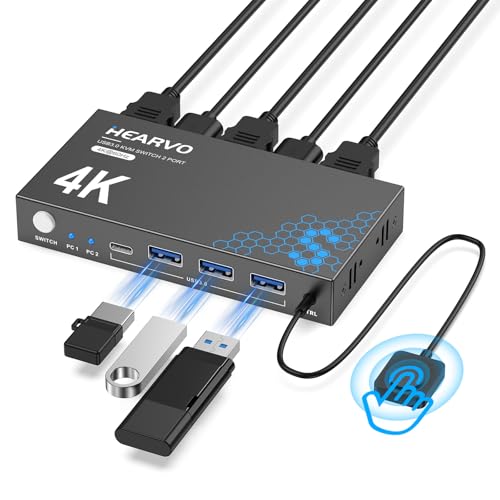
- Shares one HDMI monitor between two computers
- Supports 4K at 60Hz and four USB 3.0 peripherals
- Uses plug-and-play setup with button or wired remote switching
Best For: Two-computer desks using one HDMI monitor
Best Dual-Display Dock

- Dual 4K@60Hz HDMI output
- Four-port 5Gbps USB hub
- Up to 100W PD input
Best For: USB-C laptop and desktop dual-monitor workstations
Best HDMI Performance

- Supports 8K@60Hz and 4K@120Hz
- Four-port 5Gbps USB hub
- Includes adapter, remote, and 8K HDMI cable
Best For: High-resolution HDMI dual-monitor work and gaming setups
Best All-in-One Dock – Dual-Monitor KVM Dock for 2 Laptops
For shoppers comparing KVM switches for laptops, the AV Access KVM dock is a versatile choice when you want to share two monitors, input devices, networking, storage, and other peripherals between two USB-C laptops. Its integrated 12-in-1 design reduces cable clutter and switches between systems in about 2–3 seconds.
Best For: Hybrid workers and home-office users building a dual-monitor workstation around two compatible USB-C laptops.
Pros:
- Combines KVM switching with docking features, including dual HDMI, Ethernet, USB, audio, and SD connectivity.
- Supports up to 4K video input and up to 60W charging for each laptop.
- EDID emulation, automatic PC wake-up, and front-button switching support a smoother workflow.
- Includes two USB-C cables, a power adapter, and a 12-month warranty.
Cons:
- Requires USB-C laptops with DP Alt Mode and DP MST for extended dual displays.
- Mac models support mirrored displays only.
- It is not compatible with 5K monitors, FreeSync/G-Sync, or Dell Display Manager.
This is the most complete option here for a laptop-centered desk, especially if you need docking features as well as switching. Confirm USB-C display compatibility and macOS limitations before buying.
Best HDMI Dual-Monitor Switch – UGREEN 4K KVM for 2 Computers
The UGREEN AK500 is a practical pick among KVM switches for laptops when your computers and monitors use HDMI. It controls two computers with one keyboard and mouse while sharing two monitors, four USB 3.0 ports, and resolutions up to 4K at 60Hz.
Best For: Users with two HDMI-equipped computers who want dual-monitor switching and several shared USB accessories.
Pros:
- Supports two monitors with extend and mirror modes.
- Provides four USB 3.0 ports for keyboards, mice, storage, printers, webcams, and more.
- Supports up to 4K at 60Hz, along with HDR and HDMI 2.0 features.
- Includes HDMI and USB cables, a power adapter, and a desktop controller.
Cons:
- This is an HDMI switch, not a DisplayPort KVM.
- It does not support EDID emulation or keyboard hotkey switching.
- Each computer requires two HDMI cables and one USB-A cable; USB-C-only laptops need an adapter.
The AK500 suits a fixed HDMI setup with two monitors and multiple USB peripherals. Its included controller is convenient, but the cabling requirements and lack of EDID make compatibility planning important.
Best High-Refresh USB-C Dock – 4K Dual-Display KVM for 2 Laptops
This AV Access model stands out among KVM switches for laptops by combining dual-monitor switching, USB-C docking, Gigabit Ethernet, and high-refresh-rate support. It can switch between two compatible USB-C laptops in about 2–3 seconds and includes both front-button and wired-remote controls.
Best For: USB-C laptop users who want dual displays, shared networking, laptop charging, and smooth high-refresh visuals.
Pros:
- Provides two HDMI outputs and shared USB, Ethernet, audio, and SD-card connectivity.
- Supports up to 4K at 60Hz, 1440p at 144Hz, and 1080p at up to 240Hz.
- Offers EDID emulation, automatic PC wake-up, and included wired remote switching.
- Supports up to 100W laptop charging when used with the original laptop power adapter.
Cons:
- MacOS supports mirrored displays only because it does not support USB-C MST.
- Some integrated-graphics laptops may not support dual 4K output.
- It is designed for compatible USB-C laptops and is not compatible with desktop towers.
This is a strong fit for demanding laptop workspaces and gaming-oriented displays, provided both laptops support the required USB-C video features. Mac users should expect mirrored rather than extended displays.
Best Budget Single-Monitor Switch – Compact 4K HDMI KVM
If you need a straightforward option among KVM switches for laptops, this Jancane HDMI KVM shares one monitor, keyboard, and mouse between two computers. It supports 4K at 60Hz, works without external power, and switches sources with a single physical button.
Best For: Home offices, basic workstations, and gaming setups that need simple two-computer control on one HDMI monitor.
Pros:
- Supports UHD 4K at 60Hz, as well as 4K at 30Hz, 3D, and 1080p resolutions.
- Works with Windows, macOS, Linux, and Chrome OS without drivers.
- Compatible with laptops, PCs, consoles, TV boxes, and other HDMI-capable devices.
- Includes two HDMI cables and two USB cables, with no external power required.
Cons:
- Supports only one shared HDMI monitor.
- Switching is controlled by the physical button rather than a remote or hotkey.
- Its USB connections are USB 2.0.
This compact switch is a sensible choice when dual-monitor support and docking features are unnecessary. It keeps setup simple while covering common laptop, desktop, and console use cases.
Best All-in-One Dual-Monitor Hub – Dual-Computer 8K KVM Dock
If you need one of the more capable kvm switches for laptops, this AV Access model combines KVM switching with an 11-in-1 USB-C docking station. It connects a USB-C laptop and a desktop PC to two monitors while sharing peripherals, networking, audio, and charging.
Best For: Hybrid workers, creators, streamers, and power users running two computers at one dual-monitor desk.
Pros:
- Supports dual-monitor setups, with compatible Windows USB-C laptops reaching up to dual 4K at 60Hz.
- Provides a single USB-C connection for dual displays, up to 10Gbps data, and up to 100W charging.
- Includes multiple 10Gbps and 5Gbps USB ports, Gigabit Ethernet, SD card connectivity, and a wired remote.
- Both connected computers can remain online while you switch between them.
Cons:
- Two independently extended external displays are not supported on macOS; the monitors mirror instead.
- Laptop resolution and refresh rate depend on the laptop’s graphics hardware and USB-C video capabilities.
This is a strong choice when you want to replace separate docking, KVM, and hub equipment with one central desk unit. Check your laptop and operating-system display support carefully, especially if you use a MacBook.
Best for Two USB-C Laptops – Dual-HDMI Monitor KVM
This Reyoten model is designed specifically for people comparing kvm switches for laptops that use USB-C. A single USB-C connection from each compatible laptop carries video and USB data, letting two laptops share two HDMI monitors and common peripherals.
Best For: Windows laptop users who switch between work and personal systems on a dual-monitor desk.
Pros:
- Connects two compatible USB-C laptops to two HDMI monitors, keyboard, mouse, and other USB devices.
- Supports up to 4K at 60Hz, subject to the laptops, monitors, and cables used.
- Dual 100W PD inputs can power both connected laptops simultaneously, with approximately 73–80W delivered in use.
- Offers four shared USB 3.0 peripheral ports and switching through the unit or wired controller.
Cons:
- Dual-monitor extended mode requires a compatible Windows system.
- On macOS, both external monitors display the same content rather than two independent extended desktops.
- Power adapters are sold separately, and the laptop USB-C ports must support DP Alt Mode, data, and power functions.
The Reyoten is a practical laptop-to-laptop KVM when your systems have suitable USB-C ports and you want to reduce cable clutter. Its macOS display limitation and separate power-adapter requirement are important buying considerations.
Best Simple Single-Monitor Pick – 4K HDMI KVM Switch
For a straightforward setup, this Hearvo unit is one of the simpler kvm switches for laptops. It lets two computers, including laptops, share one HDMI monitor, keyboard, mouse, and other USB accessories without requiring drivers or a separate power supply.
Best For: Users switching between two computers on a single 4K HDMI display.
Pros:
- Supports 4K at 60Hz, along with 4K at 30Hz, 2K, 3D, and 1080p modes.
- Shares four USB 3.0 ports, including three USB-A ports and one USB-C port, at speeds up to 5Gbps.
- Provides both a built-in button and wired remote for switching.
- Plug-and-play design requires no driver software or external power supply.
Cons:
- It supports one monitor rather than a dual-monitor setup.
- It does not provide laptop charging or USB-C docking functions.
- Its 4K performance depends on suitable HDMI and USB connections and the connected computers.
This model makes sense if your priority is uncomplicated switching between two computers on one monitor. It is less suitable for dual-display laptop docking or setups that require integrated charging.
Best Dual-Display Dock – USB-C Dual HDMI KVM Dock
For shoppers comparing kvm switches for laptops, this model combines a USB-C docking station with a two-computer, dual-monitor KVM. It can connect a compatible laptop and desktop to two HDMI displays while sharing peripherals through four USB 3.0 ports.
Best For: Home offices and workstations that need dual 4K displays, laptop charging, and one-click switching between a laptop and desktop.
Pros:
- Supports dual 4K output at 60Hz with additional high-refresh modes.
- Includes four USB 3.0 ports with up to 5Gbps data transfer.
- Provides up to 100W PD input and approximately 73–80W actual laptop charging.
- Works with Windows, macOS, Linux, and Chrome OS, with button and wired-remote switching.
Cons:
- High-power USB devices may require the included 12V/2A power adapter.
- Some Dell laptops and proprietary PD systems may have compatibility limitations.
This is a strong all-in-one choice when dual-monitor productivity and USB-C docking matter more than a compact, basic switch. Confirm your laptop’s USB-C video support and charging compatibility before buying.
Best Triple-Monitor Option – USB-C 3-Monitor Laptop KVM
This USB-C model is designed for users comparing kvm switches for laptops with a three-display workspace. It connects two laptops and supports two HDMI outputs plus one DisplayPort, with switching through either the device button or included wired remote.
Best For: Windows users who want to share up to three displays and USB peripherals between two compatible laptops.
Pros:
- Supports up to three connected displays through two HDMI ports and one DisplayPort.
- Offers USB data transfer up to 10Gbps through three USB-A and one USB-C port.
- Includes two USB-C data cables and provides button or 1.5-meter wired-remote switching.
- Supports laptop charging up to 65W when paired with a suitable power adapter.
Cons:
- Power adapter and PD charging cable are not included.
- macOS is limited by MST support and may show the same image across three monitors.
- Three-display operation requires a laptop USB-C port with DP Alt Mode for video and data.
This switch offers the most display flexibility in the group, but its configuration depends heavily on the laptop operating system and USB-C capabilities. Windows users should also note that extended mode limits one of the three displays to 1080p at 60Hz.
Best HDMI Performance – Dual-Monitor 8K HDMI KVM
For buyers seeking kvm switches for laptops or computers with HDMI connectivity, this dual-monitor model offers high-resolution output, shared USB accessories, and simple plug-and-play switching. It works with Windows, Mac, and Linux and includes a wired remote for changing sources.
Best For: Two-computer setups that prioritize 8K display support, 4K high refresh rates, and a powered USB hub.
Pros:
- Supports 8K at 60Hz and 4K at 120Hz for compatible displays and sources.
- Shares two monitors and four USB 3.0 ports between two computers.
- Includes a 5V/2A adapter, wired remote, USB cables, and an additional braided 8K HDMI cable.
- Uses a durable metal housing and requires no drivers or software.
Cons:
- Its HDMI-based design does not provide the USB-C docking and PD charging features of the other laptop-focused options.
- Actual resolution and refresh rate depend on the connected computers, displays, and cables.
This is a practical pick for HDMI-equipped systems where high-resolution video and straightforward source switching are the priorities. The included power adapter and cable make it a convenient option for a ready-to-connect dual-monitor setup.
How We Picked the Best Kvm Switches for Laptops
We focused on the features that most affect everyday compatibility and convenience: supported laptop connections, display count, resolution and refresh rate, USB bandwidth, charging support, operating-system compatibility, and switching controls. The selection includes simple two-computer HDMI switches as well as docking-station-style models for dual- or triple-monitor setups.
Because KVM specifications can vary by port and configuration, check the manufacturer’s display-output requirements before buying. A switch may support 4K at 60Hz on one output but require reduced resolution or refresh rates when several displays are connected.
Quick Comparison
| Type | Best For | What to Look For |
|---|---|---|
| Single-monitor HDMI KVM | Simple two-computer setups | 4K support, USB 3.0, wired or button switching |
| Dual-monitor KVM dock | Productivity and multitasking | Two compatible video outputs and laptop charging |
| USB-C KVM | Modern laptops and fewer cables | USB-C video support, power delivery, and host compatibility |
| Triple-monitor KVM | Large workstation setups | DisplayPort/HDMI layout, bandwidth, and power requirements |
| High-refresh HDMI KVM | Gaming and fast-motion content | 4K at 120Hz or 8K at 60Hz, plus HDMI version compatibility |
Key Buying Factors for Kvm Switches for Laptops
Video Inputs and Outputs
Match the switch to your laptops’ actual ports. USB-C video requires DisplayPort Alt Mode or Thunderbolt support, while HDMI and DisplayPort models may need adapters. Also confirm whether both computers can drive the number of monitors you want.
Resolution and Refresh Rate
For office work, 4K at 60Hz is usually sufficient. Choose a model rated for 4K at 120Hz or 8K at 60Hz if you need gaming performance, smooth scrolling, or high-resolution media. These ratings depend on compatible cables, monitors, and source devices.
USB Ports and Peripherals
Count the devices you plan to share, such as a keyboard, mouse, webcam, printer, storage drive, or microphone. USB 3.0 ports are preferable for faster data devices, while basic USB 2.0 ports are generally adequate for input peripherals.
Power Delivery and Setup
A KVM dock with USB-C power delivery can charge a compatible laptop through one connection, but verify the wattage. Some setups also require a separate power adapter for the switch or connected displays.
Switching Method and Compatibility
Physical buttons, wired remotes, and keyboard hotkeys each suit different desks. Confirm support for Windows, macOS, Linux, or your preferred operating systems, particularly if one laptop uses a different platform.
Who Should Buy Which Kvm Switches for Laptops?
For a Straightforward Home Office
Choose a two-computer HDMI KVM with one monitor and shared USB ports. It is typically the simplest and most affordable option.
For a Dual-Monitor Workstation
Pick a docking-station-style KVM with two display outputs and sufficient USB bandwidth. Verify that each laptop supports the required dual-display connection.
For USB-C Laptop Users
Use a USB-C KVM when you want fewer cables and laptop charging. Check video-alt-mode support, PD wattage, and whether adapters are included.
For Gaming or High-Refresh Displays
Select a high-bandwidth HDMI KVM rated for your target resolution and refresh rate. Cable quality and monitor compatibility are just as important as the switch’s headline specification.